Search

Monday, June 5, 2023

This Google Ads script uses GPT to summarize account performance

Last month, I shared my first GPT-enabled Google Ads script. It identifies missing RSA headlines and suggests new variants.

This month, I wanted to push the limits of GPT a little harder and see if I could get it to write my next script for me. Spoiler alert: It worked! But it needed some handholding to get there. I’ll teach you how I engineered the prompt to get a successful result.

The script I am sharing uses OpenAI’s GPT to write an account performance summary along with some suggestions for how to improve the performance of a Google Ads account.

Making PPC reports more descriptive

PPC reporting can be a tedious task. By nature, it’s also repetitive because clients and stakeholders expect the latest report in their inbox regularly – be it weekly, monthly, or, heaven forbid, even daily.

There are plenty of great reporting tools (I work for one). While they can automate pulling in the data and visualizing it, making sense of and telling a story with the data usually still require a human’s touch. GPT excels at writing compelling stories, so it seemed like a good solution for my problem.

GPT and generative AI are adept at producing well-written text. Because large language models (LLMs) have read billions of words, they’re very good at predicting how to put words together in a way that makes for a compelling read.

But as compelling as they may be, they’re not always true, and that’s a big problem when the goal is to share trustworthy reports with clients.

So I set out to figure out if I could force GPT to be correct and a great storyteller about the data in an ads account.

GPT’s truth problem

A weakness of GPT is that its core strength is predicting the next word in a string. It’s much less reliable when it comes to fact-checking and ensuring what it says is correct.

Its training might have included dozens of blog posts about how to get more conversions in Google Ads.

Because those articles probably frequently mention tasks like checking budgets and managing CPA targets, GPT will likely include those things when it generates advice related to getting more conversions. 

But it may get the details slightly wrong, like whether an advertiser whose CPA is lower than the target CPA should increase or decrease their ad budget. GPT isn’t solving a problem analytically but rather predicting the words to include in its advice.

Another problem is that GPT remains bad at math despite openAI’s work to address this known problem.

For example, if provided with facts like how many clicks and impressions a campaign has, it’s not safe to assume that it will know how to determine the correct CTR from this information. We all know it’s a simple formula: clicks/impressions = CTR.

Sometimes GPT will get it right, but there’s no guarantee.

To avoid calculation errors, I decided it would be safer to do the math myself and provide the results in the prompt.

Rather than trusting GPT to calculate metrics like CTR, conversion rate, etc., correctly, I provided the values for those metrics in the prompt.

How to provide GPT with facts about your business

The specific task I wanted to automate was describing how an account’s performance changed last month compared to the month before and including some optimization suggestions.

When creating this automation, I couldn’t jump straight into the code. I had to manually create a process that worked before turning that process into an automation.

The first step was to experiment with GPT to determine what data it needed so it would stop making up facts and instead rely on the truth for crafting its stories. This required giving it Google Ads data with the facts I wanted it to describe. 

Fortunately, GPT can take a table as input and figure out how to interpret the various cells. So I created a table of campaign performance and exported it as a CSV text file which could be copied and pasted into a GPT prompt. 

Because I wanted GPT to comment on the changes in performance between two date ranges, I initially brought in two separate CSV strings, one for each period.

But two separate CSV strings use more tokens than the same data combined into a single CSV with separate columns for different date ranges.

So to make the automation slightly better at working with bigger accounts, I generated the combined CSV string.

With factual data ready to insert into a prompt, I could then move on to engineer the prompt to give me the best results possible.

Prompt engineering

With factual data to work with, I next needed to tell GPT what to do with those facts. The prompt could be as simple as:

  • “Write a summary of the campaigns’ performance comparing the two periods.”

GPT is smart and figures out what the different periods in the CSV data are.

If it tends to focus too much on certain metrics you’d like to deprioritize, add more detail to the prompt, like:

  • “Do not include Search Lost IS in the summary.”

Next, I wanted it to include some optimization tips. To make the suggestions more reliable and more in line with my own management style, I loaded the prompt with some additional facts like these:

  • The target CPA is $20. A cost higher is bad, and a cost lower is good.
  • If the Search lost IS (budget) > 10% and the CPA is below the target, the budget should be raised.
  • if the CPA is above the target, the bids should be adjusted.

Then when sending a very detailed prompt with CSV data, facts, and a request for what to do with this data, GPT started giving solid answers.

With all the puzzle pieces in place, it was time to ask GPT to write me the automation.


Get the daily newsletter search marketers rely on.

Processing…Please wait.


Getting GPT to write Ads scripts

The code for a Google Ads script to pull data from an account isn’t particularly complicated. It’s part of almost any script and very well documented.

So I crossed my fingers and asked GPT to write a script to pull the data for me with this prompt:

GPT prompt

The response looked like a good script, but one thing seemed a bit off. It was writing a GAQL query that included the two date ranges I wanted to compare in a single query. That is not supposed to work.
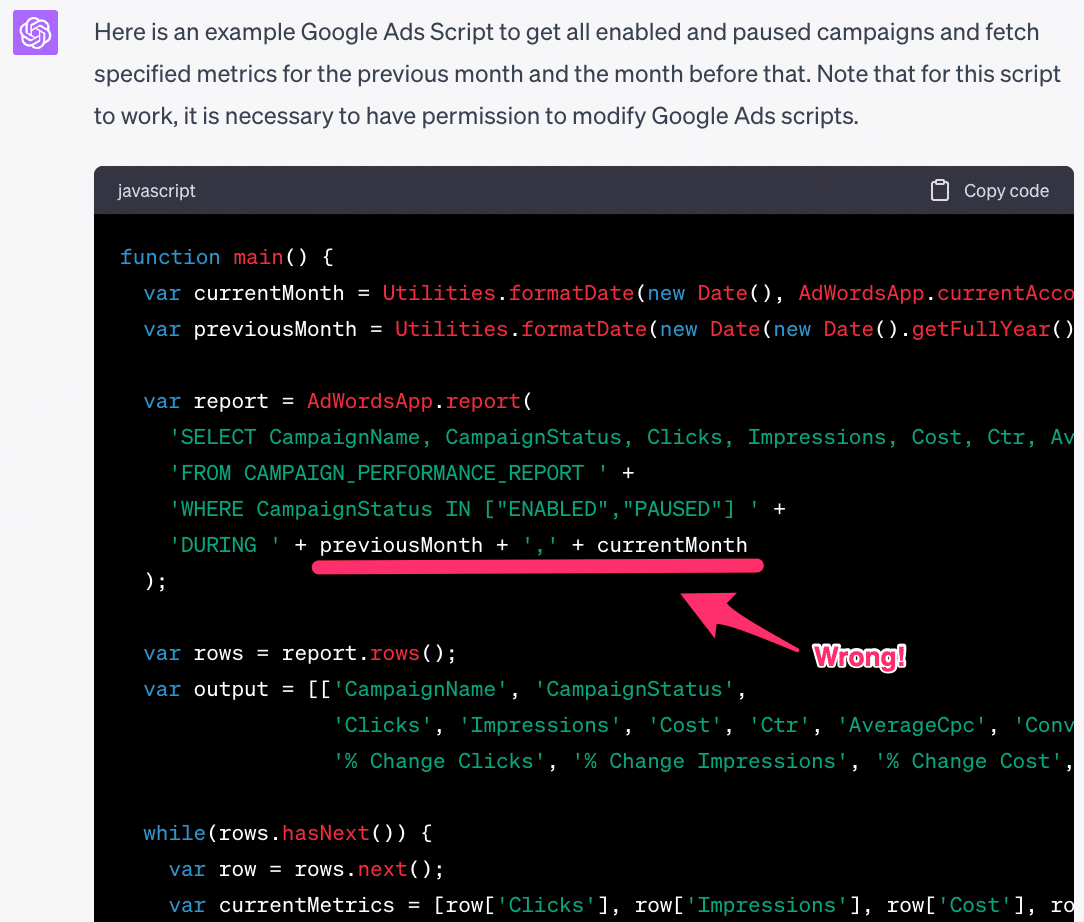
Incorrect output

So I asked GPT to try again, and while the implementation changed slightly, it once again messed up the date ranges in the GAQL query:
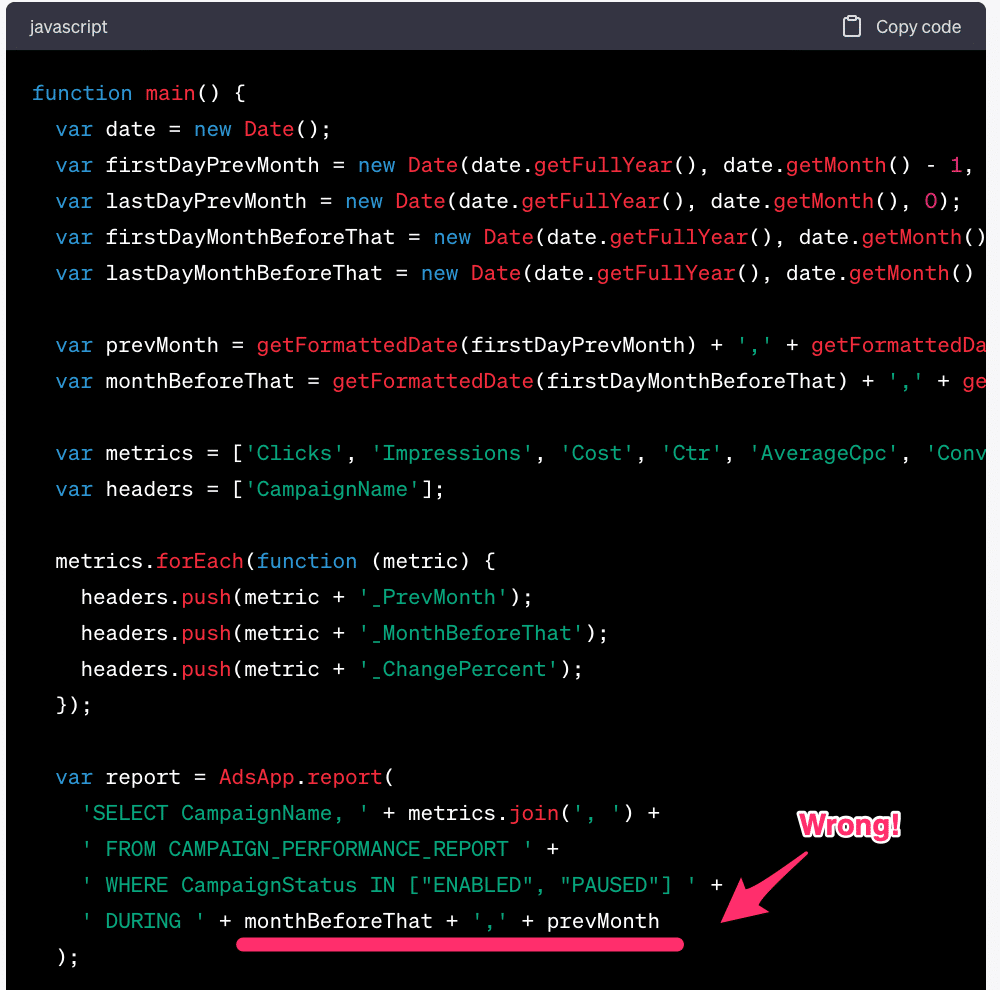
Incorrect output

At this point, I could have given up and fixed the code myself, but instead, I did some prompt engineering.

What if my prompt was confusing GPT?

I told it to:

  • “Get the clicks, impressions, cost, CTR, average CPC, conversions, conversion rate, and cost per conversion metrics for the previous month and the month before that.

Could I be clearer and tell it this should be done in two separate queries that would be merged later?

So I changed the prompt to include this new text:

  • “Get the clicks, impressions, cost, CTR, average CPC, conversions, conversion rate, and cost per conversion metrics. Get the report for 2 date ranges: last month and the month before that. build a map where the key is the campaign name and it includes the stats from the 2 date ranges.

This is much more precise, and the result came back as follows:
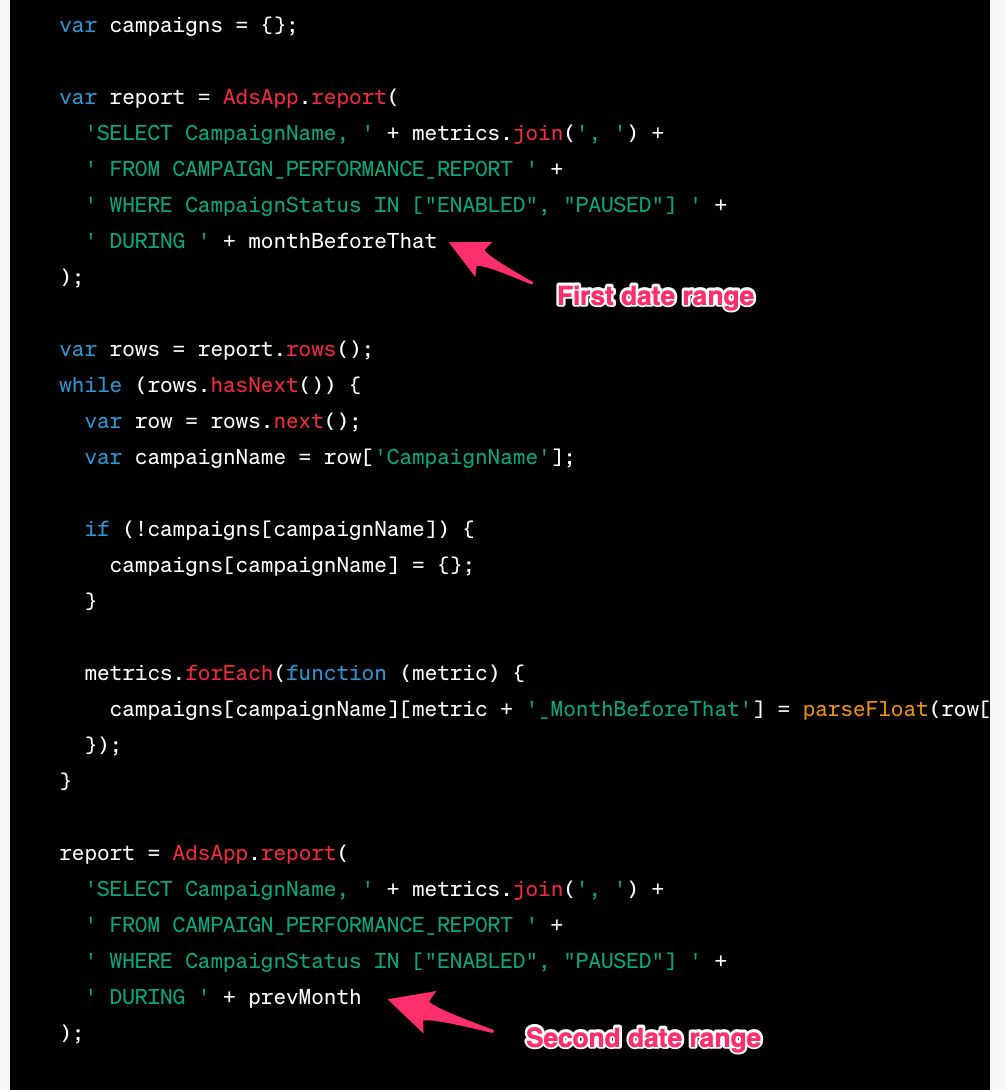
Google Ads script

Now GPT was writing the correct code. After installing it in my Google Ads account, it immediately worked as expected and generated the needed CSV data.

This was a good lesson in prompt engineering for me. If you hire a new team member who’s never done PPC, you probably need to be pretty precise in your instructions when you ask for help. It’s the same with GPT, precision matters!

Also, it still matters to be a subject matter expert. Someone who’s never worked with GAQL or API reports from Google Ads might not know that you can’t get data for two date ranges in a single call. Without that knowledge, finding the error in the GPT response could be very difficult.

Bottom line, when asking GPT to generate code, it’s helpful to write pseudo-code rather than being too general and only telling it what outputs you expect. The more you tell the system how to arrive at that output, the more likely it will write code that works. 

With the code to pull CSV data working, I now needed some code to send that data to GPT to ask for a summary.

Using GPT in Google Ads scripts

To use GPT in a script, you need API access and an API token. You can sign up for this on the OpenAI website. With that, you can write a simple function that calls the API with a prompt, gets the response, and prints it on the screen.

This code could be requested from GPT, but I already had it from last month’s RSA script so I just reused that.

Here’s the code snippet to use GPT in Google Ads scripts

Putting it together

Next, I put the two scripts above together. The first script gets the data I need for my prompt, and the second script sends that data as a prompt to GPT and captures the response, which is then rendered on screen.

Grab a copy of the complete code here and remember to add your own API key to start using it:

Then you should experiment with the facts and prompt. The line in the code where you enter facts should include details you want GPT to know, such as:

  • What your target is.
  • Whether a number higher or lower than the target is good or bad.
  • Facts about your account optimization methodology (i.e., what you would recommend doing if the CPA is too high and the impressions have decreased).

GPT will pull from the facts you provided rather than making stuff up when it summarizes the performance.

You can also engineer the prompt to do things the way you want.

For example, you could ask GPT to include or exclude particular metrics in its summary or tell it what style to write in, e.g., conversational or business-oriented.

Remember that this script uses the OpenAI API, which is not free. So every time you run this, it will cost money.

I recommend running this script as needed and not putting it on an automated schedule.

Summarizing PPC performance with GPT

GPT is excellent at writing but can have problems with factual correctness. That is why providing as many facts as possible in the prompts is helpful.

By using a Google Ads script, facts about account performance can automatically be prepared in a format that works with GPT.

Use this script to provide GPT with facts about your account and get a performance summary that can be shared with clients and stakeholders.

I encourage you to check it out and let me know what you think.

The post This Google Ads script uses GPT to summarize account performance appeared first on Search Engine Land.


from Search Engine Land https://ift.tt/5ltM4Fd
via IFTTT

How to create an SEO Chrome extension using ChatGPT

Chrome extensions provide a quick and easy way to execute boring and repetitive tasks. Extensions can be a huge time saver in SEO. But many still don’t focus on building them.

One reason is that some marketers are unable to code complex tools, so they use whatever tool is available. That said, you don’t always need to invest your time learning difficult skills or spending money on an expensive developer to build a new complex tool.

Now, you can use ChatGPT to build your own customized SEO extensions, upload them on Google and use them daily for free. Here’s how.

Step 1: Define the requirements

Having a clear understanding of what you want your Chrome extension to do is the first step in this process. I’d advise content marketers to think about this before they start prompting ChatGPT and write down specific and clear requirements.

Requirements are normally of two types: 

  • The task: What do you need your extension to do?
  • The feature: How do you want your extension to present you with the information?

Disclaimer: This process is meant for building an extension that works only on your computer, which means you won’t be able to sell it or make it available on Chrome Web Store. For that to happen, you’ll have to comply with Google guidelines, which can be found here.

For this guide, we’ll use the example of a simple SEO Chrome extension I built myself. So here are my requirements.

Information requirements

I want my SEO Chrome extension to tell me all the page elements for a quick overview of the page, without having to go into the page backend code to check them out:

  • Page title
  • Meta description
  • Copy headers
  • Internal Links, including URLs list
  • Images, including URLs
  • Canonical URL

Feature and behavior requirements

I want my extension to show me a popup window when I click the extension icon on the Chrome browser.

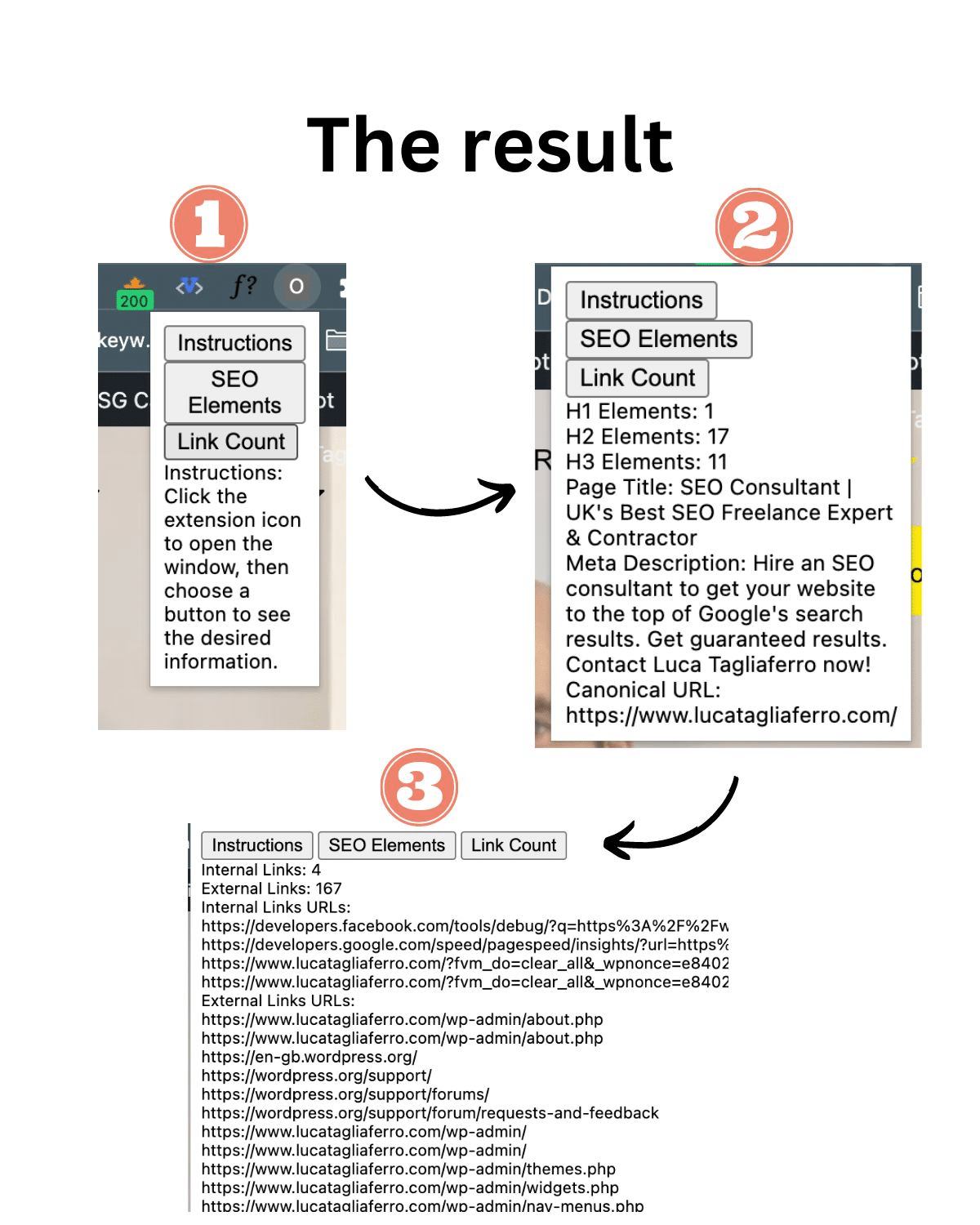
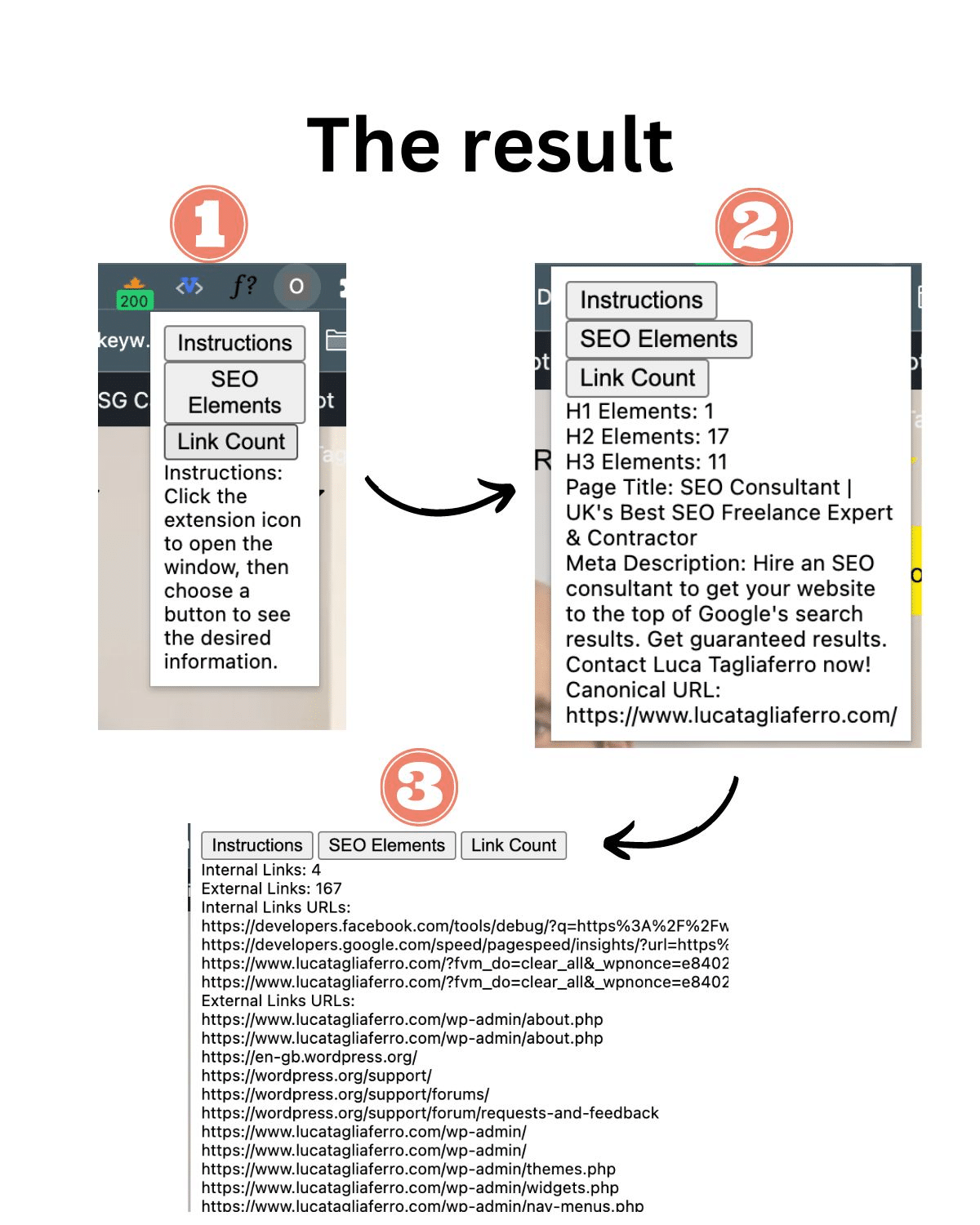
Below you can see what we will build and how it will display on Chrome.

Chrome extension

Note: This is a basic version of the extension that doesn’t include CSS styling for simplicity. What we focus on in this guide is the actual functionality, not the style.

As you can see in the image above, you’ll need to ensure that the results of the extensions will be visible to you on your Chrome tab as a pop-up window. 

Most SEO extensions work this way, they provide you with the information you need on a pop-up window when you click the extension icon.

Step 2: Write a detailed description for ChatGPT

Now that you are ready for prompting on a potential SEO extension, you can head to ChatGPT to write the detailed instructions. Again, your prompt need to be as specific and as detailed as possible. 

Most prompts I see marketers using are not long, they are very short. And from short prompts, you’ll get poor results. 

Here is how you can do it: 

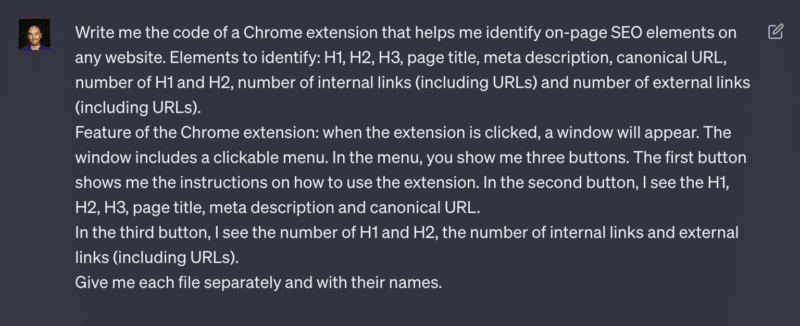
First, you need to give ChatGPT some goals. To do this, you can use the same requirement we saw in Step 1 in addition to a command line:

  • “Write me the code of a Chrome extension that helps me identify on-page SEO elements on any website. Elements to identify: H1, H2, H3, page title, meta description, canonical URL, number of H1 and H2 and number of internal links (including URLs).”

Now that you gave ChatGPT the goals you want to achieve, it’s time to specify exactly how you need your extension to behave. For this, we’ll be using the pop-up window feature with buttons. Here is how you can do this part:

  • “Feature of the Chrome extension: when the extension is clicked, a window will appear. The window includes a clickable menu. In the menu, you show me three buttons. The first button shows me the instructions on how to use the extension. In the second button, I see the H1, H2, H3, page title, meta description and canonical URL. In the third button, I see the number of H1 and H2, the number of internal links (including URLs).”

We need to be very specific about what we want to achieve. To do this, you’ll have to add the last paragraph of the prompt specifying how to need to upload the prompt. 

  • “Give me each file separately and with their names.”

This way, you are asking ChatGPT to split the files into parts. This is important because of Step 4. So hang on in there.

Step 3: Ask ChatGPT to write the code

Finally, it’s time to take all of the sentences we wrote, copy them and paste them into ChatGPT:

One of the best functionalities of ChatGPT is the ability to write code without any issues. 

That’s why, according to our instructions, ChatGPT will provide you with four separate codes. 

Note: When you create a new Chrome extension, you normally need to provide several types of files, depending on how complex it is. For this example, we only need four types of files to upload inside the Chrome Account:

  • Manifest.json 
  • Popup.html
  • Popup.js
  • Content.js

Using ChatGPT means that marketers don’t need to learn how to build these technical files, and that’s the whole point of this guide, but it’s still important to know what they are for. 

Additionally, I’d recommend digital marketing experts learn as much as possible about these files as they need to troubleshoot possible technical issues and figure out how to make their extensions work better. Google has a specific guide on Chrome Browser Actions if you want to learn more.

Manifest.json

The manifest.json file is a configuration file required for every Chrome extension. 

It contains metadata about the extension, such as its name, version, description, icons, and permissions. It also specifies the default popup file to be displayed when the extension is clicked.

Popup.html

The popup.html file represents the user interface (UI) of the Chrome extension. It defines the layout and content that will be displayed when the extension’s icon is clicked. 

In this case, it includes buttons for instructions, SEO elements, and statistics, as well as a results section to display the gathered information.

Popup JS

The popup.js file contains the JavaScript code that interacts with the UI of the Chrome extension. 

It handles button clicks and sends messages to the content script (not included in the provided code) to retrieve SEO elements from the currently active webpage. 

It also updates the UI to display the retrieved information in the results section when the corresponding buttons are clicked.

Content.js

The content.js file is responsible for interacting with the web page’s content and extracting the necessary data. 

In this case, it listens for messages from the popup and performs the tasks.


Get the daily newsletter search marketers rely on.

Processing…Please wait.


Step 4: Export the ChatGPT codes into files

Now that we have the codes and the three types of files, the next step is to download these files' information into a digestible format for the Chrome Extension. 

Here is how you can do this: 

Download the Sublime Text app 

Sublime Text is a shareable editor that natively supports all programming languages and markup languages. Users can download the files and upload them somewhere else.

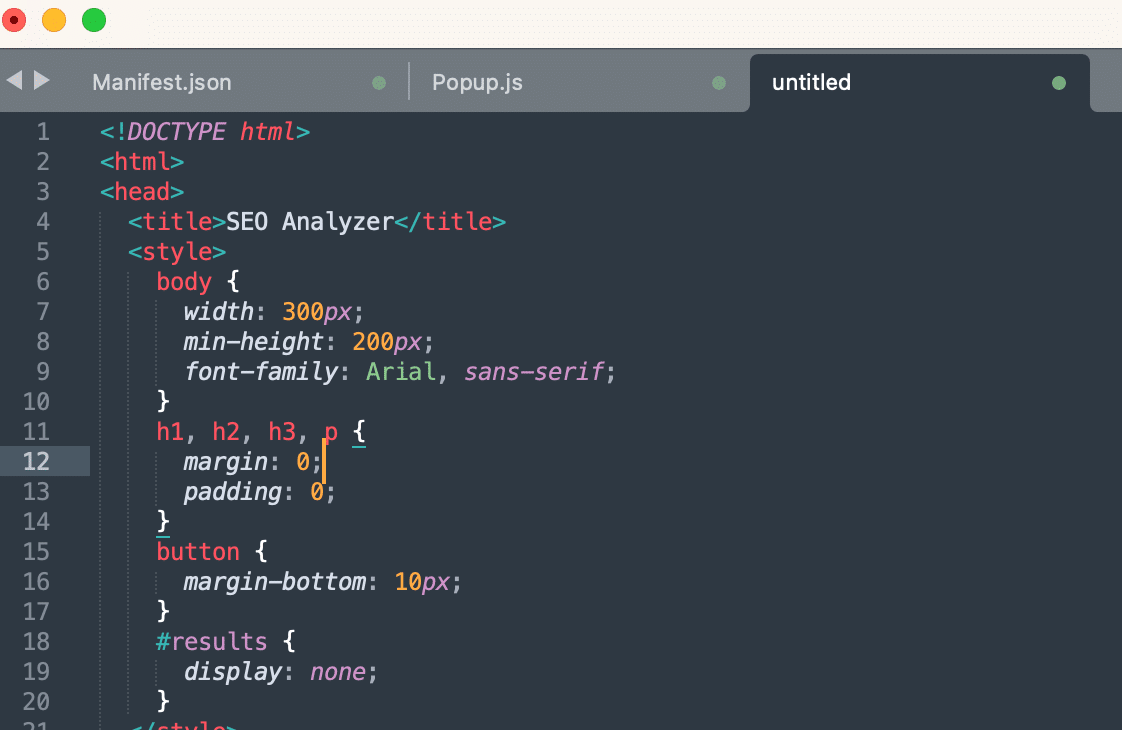
Copy and paste the codes

Now that we have the codes and Sublime Text, we need to copy the codes from ChatGPT and paste them into the required Sublime Text tabs, before we can download them on our desktops. 

In each separate tab, we will paste the codes: 

Once you press “Paste,” there will be sometimes a tab without a title that looks like this;

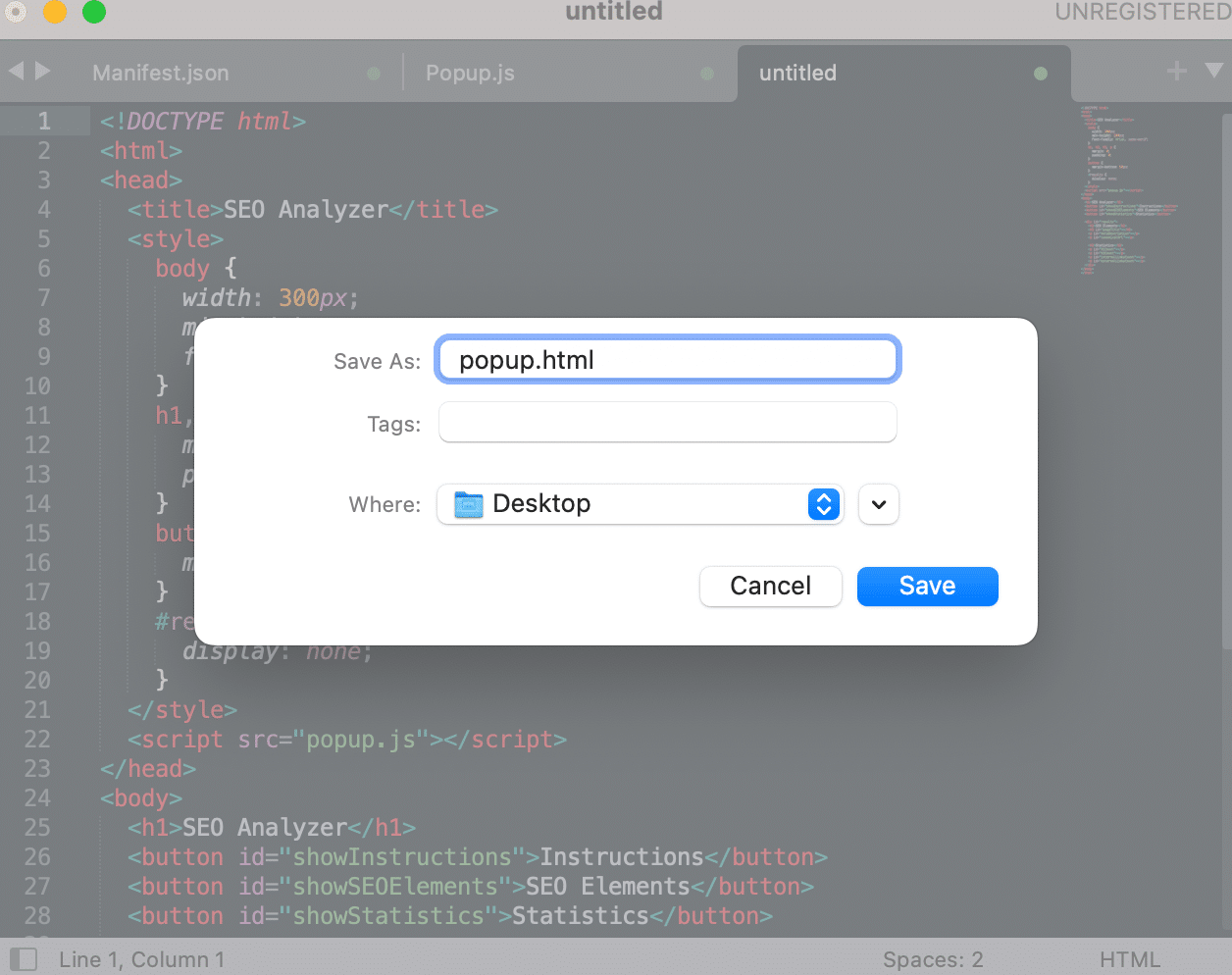
It’s worth mentioning that in the code examples I am using for this guide, the Sublime Text app doesn’t pick up titles automatically, so you’ll have to manually add them. 

When you save the files on your desktop, you’ll be able to change the names of the files. However, this will not affect your extension.

You can save all the files into a specific folder that you can call “My SEO extension” or something like that.

Step 5: Upload the files into the Chrome extension account

Now that we have completed the hardest part of this guide, writing the code, it’s time to upload the files into your account. 

For you to do this, you need to open your Chrome extensions dashboard here: chrome://extensions/

Once inside, follow these steps to correctly upload your files: 

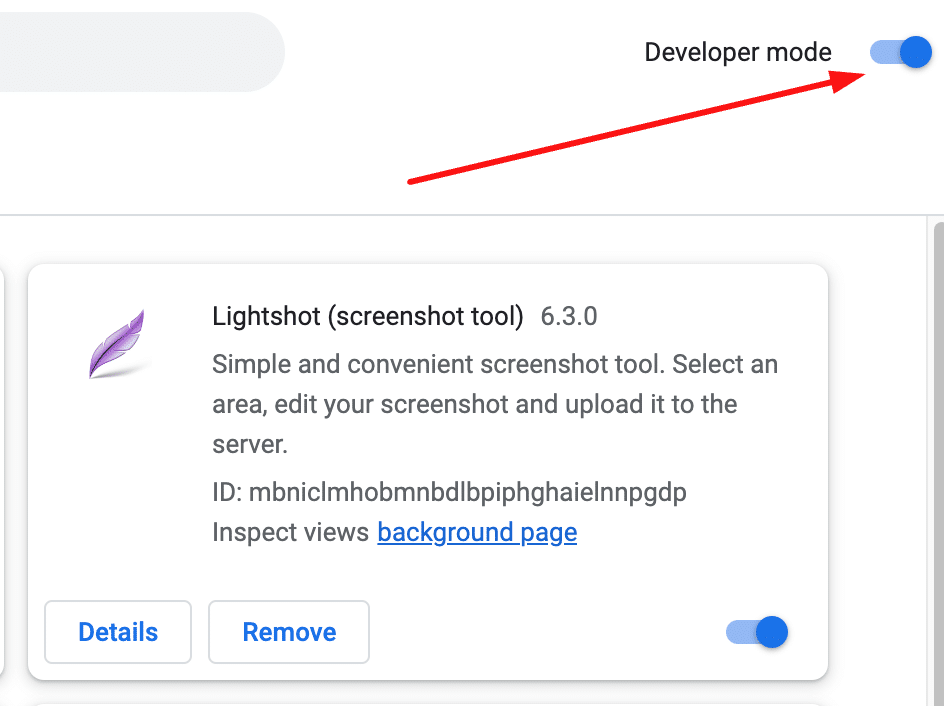
  • Switch on the “Developer mode” on the top right of your browser. This will allow you to open the upload function.
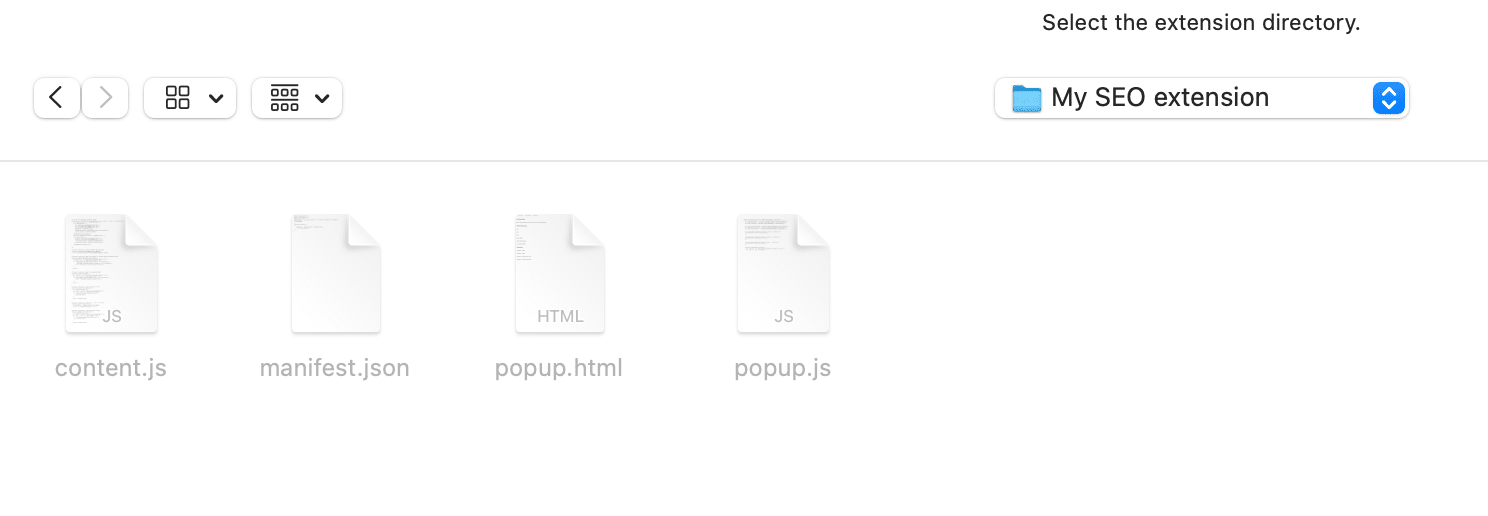
  • Click “Load Unpacked” to find and select your 4 files for the upload.

When you press “Load Unpacked,” this window will open if you are on a Mac.

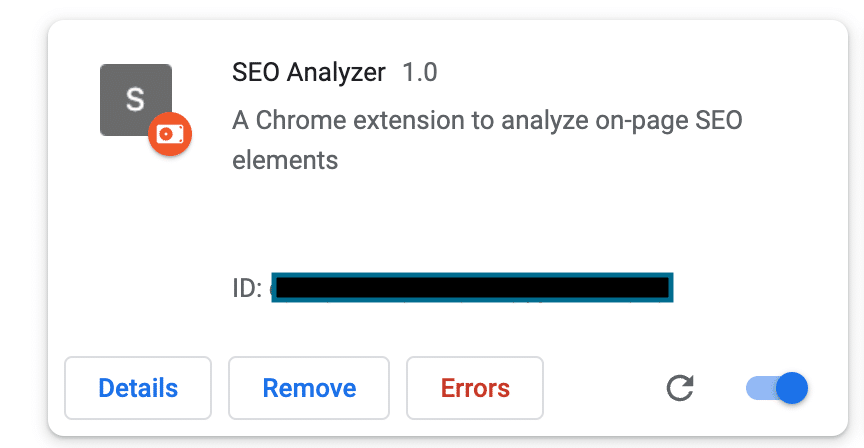
Upload all four files into the Chrome extension dashboard. If you have done everything correctly, you’ll see your extension in the list like this: 

SEO Chrome extension

At this point, your extension is almost ready to be tested. 

We built the extension with three buttons: 

  • The instruction button to learn how to use it.
  • The SEO on-page elements button.
  • The Links button. 

Each button you click will give you the ability to read the on-page information and make a quick assessment of whether the page is correctly optimized for search.

Step 6: Troubleshooting and cleaning up the code

Don’t worry if you see errors in your Chrome extension, these are unavoidable but easily fixable.

With the current version of ChatGPT, the code refers to Google’s guidelines before December 2021, and many things changed since then.

Deprecated manifest version

This means the code can be old and not updated to the latest version of Chrome extension requirements for your manifest file. 

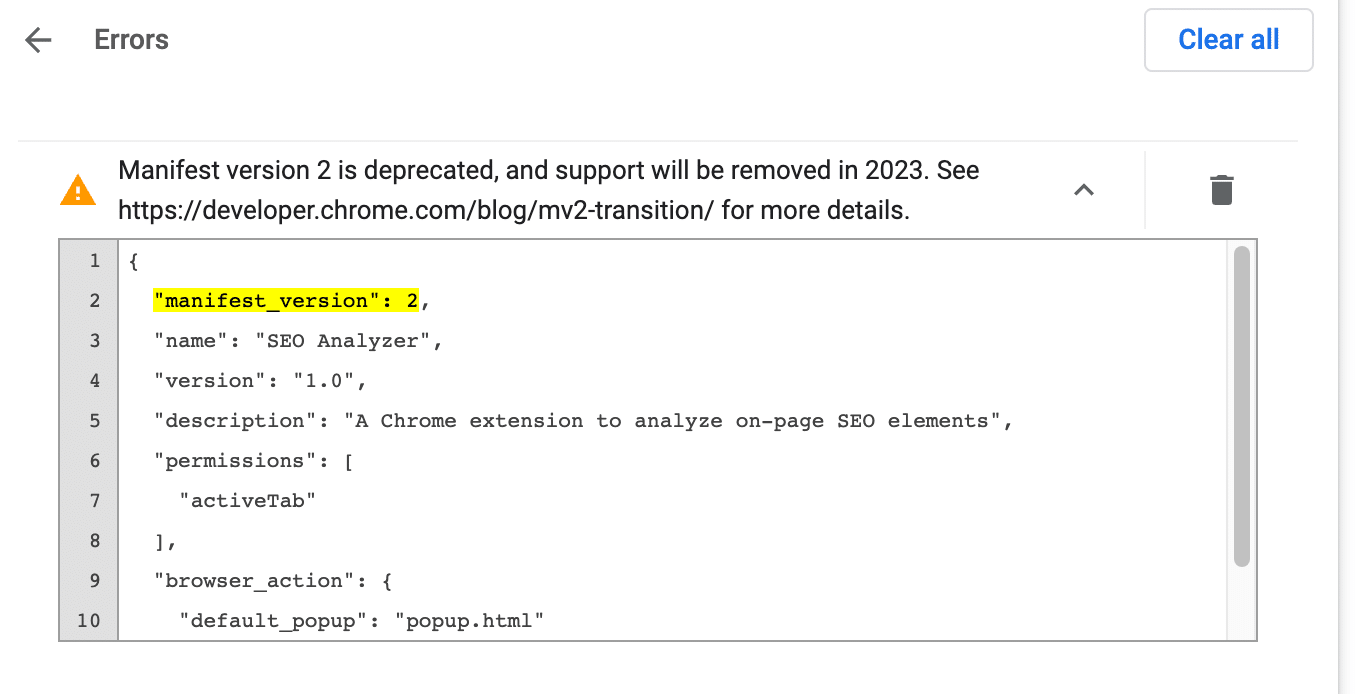
One of these errors is showing that the Manifest.json file is deprecated, which means Google wants you to update from January 2023. 

It’s very likely that you encounter this type of error: 

To fix this issue, all you have to do is select “manifest_version”: 2 in your Sublime Text file and replace the “2” with the “3”, which is the latest version.

Once done, upload the extension again. 

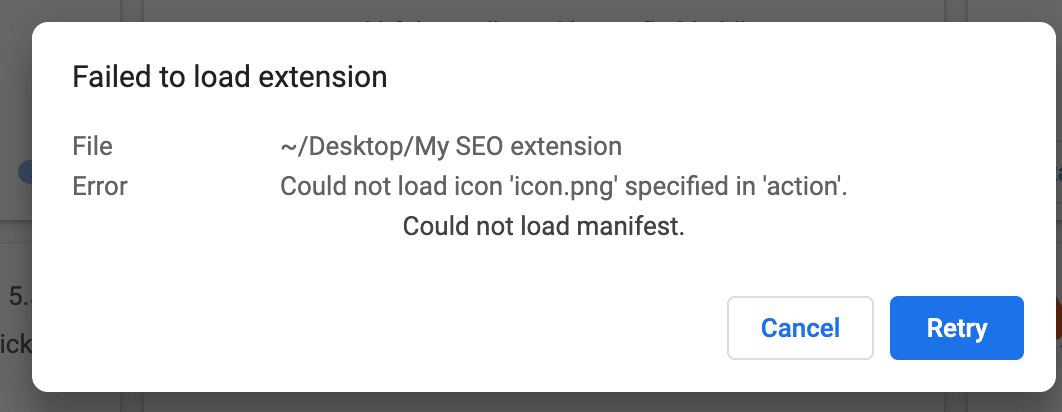
Failed to load extension

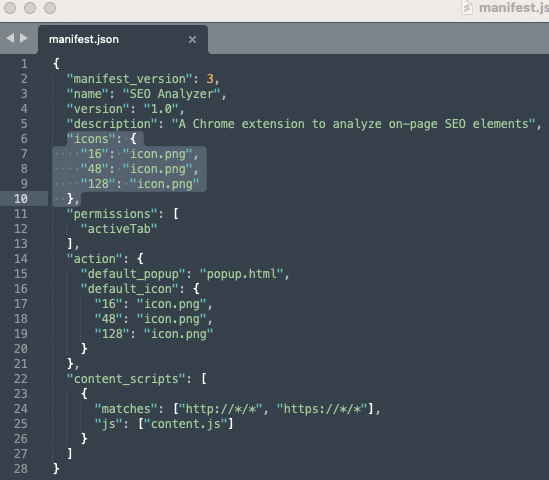
It’s very important to remove any reference to icons and images.

Otherwise, you’ll get an error that says “fail to load extension”. This is because we haven’t specified an URL for the extension icons and images. 

But in this example, we don’t have to add any images or icons, so it makes sense to remove that part of the code requiring it. 

Here is how you can do it: 

  • Open the Manifest.json file.
  • Locate the lines of code referring to the icons. In my example, the lines are 6 to 10 and 16 to 20
  • Remove these lines from the code and save your file. 
  • Then upload it again in the dashboard.

This time, without the ChatGPT errors, we should have a clean and correct extension ready to be tested again. 

If you did everything right, this is what you should see – or something very similar: 

Chrome extension output

Start creating your own SEO Chrome extensions

If you are failing again and again, things can become quite frustrating, especially if you don’t know how to code. I know because I have been there. 

Also, remember that with AI, there are no specific rules for writing proper descriptions of what you need. You might need to update your prompt a few times to make it work as you need it to.

Here is what you can do to mitigate errors and try to fix them:

  • Copy the error and paste it directly into ChatGPT, asking to fix it. Normally the tool is really good at explaining what is wrong with the code in simple terms. Then make the improvements recommended.
  • Try removing some of the extension requirements if you feel your code is just too long and complex. Start small. Maybe create just an extension for finding out the page title. Once tested successfully, add new requirements and test again.
  • If ChatGPT doesn’t provide you with a good solution, use the good old Google. Chances are many people before you have resolved it already.

Hopefully, with this detailed guide, you can start harnessing the power of ChatGPT and learn how to build your next SEO extension. 

The post How to create an SEO Chrome extension using ChatGPT appeared first on Search Engine Land.


from Search Engine Land https://ift.tt/8MhyOIe
via IFTTT

Mastering the delicate balancing act of marketing by Emarsys

As marketers, we often work in the liminal space between businesses and customers. For you to succeed, both must be satisfied. The concerns of the business – revenue, growth, operations – mean little to customers, and the business often sees customers in return as line items in a financial report. 

It’s a delicate balancing act to satisfy both. This is why both art and science are so essential for modern marketing. Art to create, connect and convert customers, and science to deliver, optimize and measure it. 

Brands that can blend the art and science of marketing stand a better chance of driving true customer loyalty. This is no small feat as it requires creating an emotional connection between customers and businesses in order to build long-term relationships.

These themes form the basis of SAP Emarsys’ upcoming Power to the Marketer Festival. Returning for its third year, this year’s festival is a year-long initiative to shine a light on the exceptional efforts of marketing individuals and teams throughout the world through in-person and online events. 

Empowered marketing events

The first online event, the Power to the Marketer Festival Omnichannel Masterclass, will be from 7-8 June. Event attendees can expect practitioner-led, expert insights on how top brands have applied the art and science of marketing. 

Here’s a full breakdown of sessions for this LIVE online 2-day festival:

Day 1 | The Art of Marketing (June 7)

  • 9:00 a.m. (ET): SAP Emarsys – Product Strategy, Roadmap and Innovations
  • 10:00 a.m. (ET): Fireside Chat: Perfecting the Art of Loyalty to Drive Retention and Revenue (Estée Lauder, Jebbit, Hobbii)
  • 10:30 a.m. (ET): It’s Raining Revenue! How Movable Ink Built a Revenue Waterfall for Brandsdal

Day 2 | The Science of Marketing (June 8)

  • 09:05 a.m. (ET): Ochsner Sport’s Personalization Journey: Bridging Creativity and Conversion
  • 09:30 a.m. (ET): The New Change Agents: How Top IT and Marketing Teams Drive CX Innovation
  • 10:00 a.m. (ET): How BrandAlley Leveraged Advocacy Data to Supercharge Their Growth
  • 10:30 a.m. (ET): The Science of Building Stronger Customer Relationships Through Conversations
  • 11:00 a.m. (ET): Grow Your Business with a Customer-Centric Data Strategy

Check out the festival registration page to read more about the schedule and the speakers, and then book your spot. 

The first Power to the Marketer in-person event will be on June 13 in Germany. If you happen to be in Munich, join us at the Famtain Member Club for expert talks converting topics such as:

  • 2:35 p.m. (CET): Fireside Chat: From Pure Play to Omnichannel Challenger
  • 3:00 p.m. (CET): Panel Discussion: Investing To Win In A Cut-Back Economy
  • 4:00 p.m. (CET): Panel Discussion: How to Make Data Your Secret Weapon
  • 4:35 p.m. (CET): Keynote: Lingering and Longing: The New Language of Loyalty

The post Mastering the delicate balancing act of marketing appeared first on Search Engine Land.


from Search Engine Land https://ift.tt/DT1AVYX
via IFTTT

Friday, June 2, 2023

Ask Instacart brings generative AI to Instacart’s search experience

Instacart is adding generative AI to its search experience. Called Ask Instacart, the new search feature is designed to help answer shoppers’ grocery-related questions and give a boost to sponsored product campaigns.

How it works. Just like with Google and Microsoft Bing, Instacart users will be able to search via natural language queries and get personalized recommendations. For example:

  • “What kind of side dishes should I serve with lamb chops?”
  • “What are dairy-free snacks for kids?”
  • “What are the best veggies to roast?”

Ask Instacart is built using OpenAI’s ChatGPT plus Instacart’s own AI models. Instacart said this is “a highly specialized model designed to only respond to relevant food-related questions.”

What it looks like. Here’s a screenshot of Ask Instacart:

Ask Instacart

Search prompts. Instacart has also added “personalized question prompts” to the search bar. Instacart said these prompts “anticipate customer preferences, remind them of their needs based on their shopping history, and inspire them to discover new products.”

Why we care. For CPG brands and retailers, this AI-powered search offers a new way to potentially get your product campaign seen by more shoppers – aiding in discovery and driving more sales.

Rollout timeline. More than half of Instacart app users now have access to generative AI search. It will roll out to all U.S. customers “over the coming weeks.”

Intro video. Here’s the video introducing Ask Instacart:

The post Ask Instacart brings generative AI to Instacart’s search experience appeared first on Search Engine Land.


from Search Engine Land https://ift.tt/KYA8tQ2
via IFTTT

Bing Chat increases chat turns, adds visuals to travel queries and expands Bing Image Creator

Microsoft Bing has released a number of improvements to Bing Chat this week, including more chat turns, more visuals and expanding Bing Image Creator.

More chat turns. Bing Chat now supports 30 chat turns per conversation, which is up from 20 chat turns per conversation. Plus, you are now allowed 300 total chat turns per day. Bing explained, “This increase also applies to any conversations in your chat history.” So you are allowed to return to conversations where you may have previously reached your turn limit and pick up where you left off, without it counting against your turns.

Eventually, these limits will go away but AI tools like these are expensive and server intensive to run, so Microsoft is scaling it up slowly.

Visuals in travel. Bing Chat now will show and generate more visual results for your travel queries. These visuals also contain links directly to Bing Travel results.

Here is what it looks like:

Bing Image Creator expanded. Bing Image Creator now works not just in creative mode, as it launched in within Bing Chat, but now works in all chat modes, including Precise and Balanced modes.

Here is a GIF of that in action:

Why we care. We will continue to keep track of these improvements to Bing Chat, Google Bard, SGE and other AI improvements. The pace of improvements are increasing and a super fast rate.

The post Bing Chat increases chat turns, adds visuals to travel queries and expands Bing Image Creator appeared first on Search Engine Land.


from Search Engine Land https://ift.tt/Bciy0ea
via IFTTT

YouTube is the most profitable platform for creators, survey shows

Creators earn the most from their brand partnerships on YouTube – more than Instagram and TikTok, according to a new survey.

By the numbers. On YouTube, 6% of creators earned more than $10,001 per month – compared to 3% of Instagram creators and 2% of TikTok creators.

  • 50% of YouTube creators earn more than $500 per month vs. Instagram (40%) and TikTok (36%).

More expensive, but. While it’s more expensive to work with YouTube creators, brands should work with them because the platform has high engagement metrics.

Creators get a 50% engagement rate, on average, which beats all other platforms by far (TikTok and Instagram had a 3% and 2% engagement rate, respectively). Engagement on YouTube was defined as views, likes, comments and shares. Also:

  • “YouTube’s longer video format allows creators to dive deeper into your products in each video — which is especially helpful if you’re selling products like tech gear or ready-to-build furniture, which may need step-by-step tutorials.”

About the survey. It is a combination of internal data from Aspire, an influencer marketing platform, plus a survey of 1,000 “diverse creators, varying in audience size, main platform of choice, industry, and more.” Most of the creators were U.S.-based.

Why we care. Influencers can help your SEO campaigns. And with big investments continuing in influencer marketing, YouTube seems to offer brands the most ROI for working with influencers right now.

Go deeper. If you want to learn more about how much to pay influencers, you can download the survey results for free from Aspire.

Creators frustrated with TikTok. Disappointed about how much they were being paid, creators were leaving TikTok claiming mental health blows and burnout, as we reported last year. Some creators claimed they were being paid between $0.02 – $0.03 per 1,000 video views.

The post YouTube is the most profitable platform for creators, survey shows appeared first on Search Engine Land.


from Search Engine Land https://ift.tt/NasSn86
via IFTTT

Get your B2B site unstuck: Top SEO tips for stagnant sites

If you’ve ever analyzed traffic patterns for a website, you know that organic traffic ebbs and flows over time. Even the most authoritative sites will have older pages that see traffic drops. 

With the recent run of algorithm updates, you might have a previously stable site that’s seen more turbulence (and even a longer-term flattening or drop) than it had in years past.

In this article, we’ll walk through steps you can take to reverse organic traffic drops or get your B2B site growing again if traffic has flattened.

Diagnosing organic traffic drops

First, it’s important to understand why you’re losing traffic. This is a good article that goes into greater depth on how to determine the real reason for a traffic drop (or flattening) which may be:

  • A loss in rank due to algorithm updates.
  • A drop in impressions due to a change in what’s displayed in search results (such as ads and search features like featured snippets, people also ask, etc.).
  • A drop in click-through rate due to a mix of the above reasons.

Additionally, you’ll want to dig deeper to see which specific pages are at issue. Identify the time frame you’re looking at:

  • If you’re seeing a steady decline, note the previous high and where the decline has been.
  • If traffic is flat, note the period where it plateaued.

From there, you can start to look at date-range comparisons such as:

  • The period where traffic dropped versus the previous period.
  • The low versus the previous high if there was a drop.
  • If traffic is flat: the most recent block of 28 days versus the 28 days where traffic was still growing.

As you dive into these comparisons, just be conscious of any seasonality and day-of-week differences that may mean your comparisons would be apples to oranges.

Once you know which date ranges you want to compare, you can start to see the pages that have lost the most traffic. You can do this in Google Search Console by clicking on date:

Then selecting compare and the date range you want to compare:

Once you do this, you can then click pages and sort the data by click difference to see pages that have lost traffic (even if traffic has been flat, you’ll likely have pages that have lost traffic – on an older site with a lot of traffic that is publishing new content, this is likely where your “traffic leak” is coming from):

Getting to the why: What’s changed?

Once you determine the pages that are losing traffic and that they are, in fact, losing rank (and aren’t just a victim of SERP changes), there are a number of steps you can take for each page that’s seen a drop to help regain traffic.

The first step is understanding why. To do this:

  • Identify the terms that have lost traffic on a page.
  • Go look at that SERP.

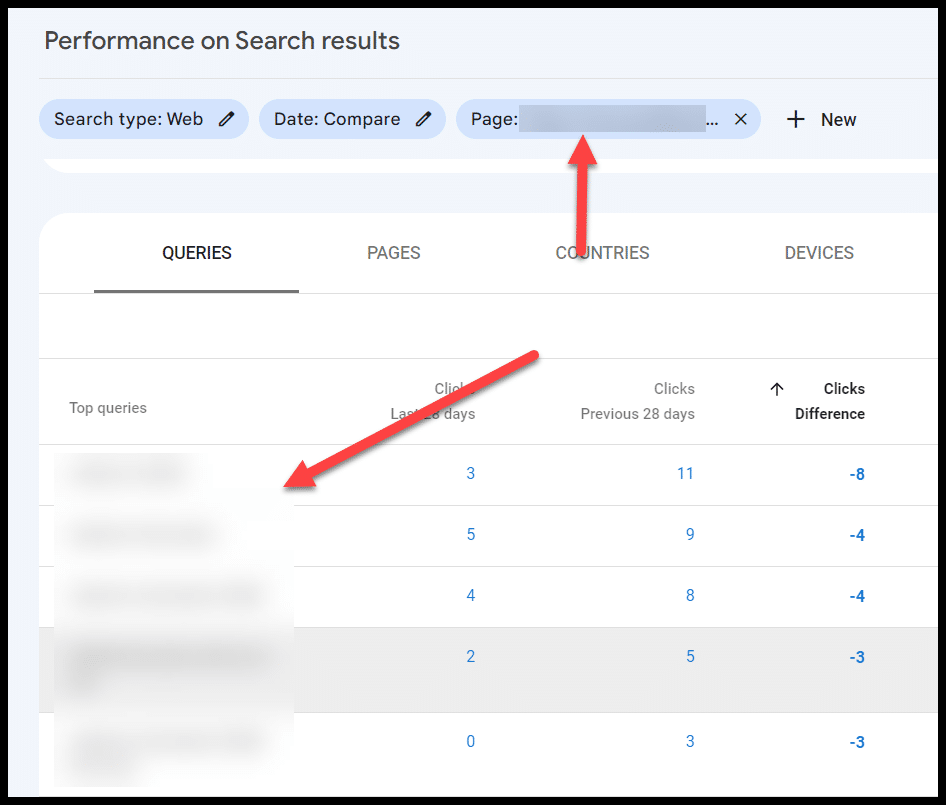
From your list of pages with the biggest page drop in GSC, you can then click the page (which creates a filter for that URL) and look at the queries, sorting by click difference in the same way you did for top pages:

You can then go look at the search results for those queries where you lost traffic. A few things may be true:

  • More authoritative sites may be ranking.
  • Google’s perceived search intent for that result may have changed (e.g., you may have had a large guide to restaurant marketing that ranked for the query, but now many of the results are “restaurant marketing ideas” list-style responses), and your page is no longer a good match for that intent.
  • More specific content may now be ranking for a query where your broader page used to rank (e.g., your restaurant marketing guide used to rank well for Google Ads campaigns for restaurants, but now the SERP is full of guides that cover that topic exclusively).
  • You may have the intent matched perfectly, but there may now be a flood of competitors creating pages on the same topic, and your content (which might have been the only show in town a year or two ago) may no longer be up to snuff

This is a good jumping-off point as it gives you direction on what to prioritize as you’re updating content that’s lost traffic. A good process to work through here is to:

  • Export the pages that have lost the most traffic (ideally looking at a few different angles in terms of date ranges).
  • Note the traffic drop as well as the queries that lost traffic and what you found when you inspected the SERP (why did your pages see a drop)

Now you can prioritize these based on pages that saw the biggest drops. 

Importantly, if you are seeing drops on a certain content type, you want to do this inspection and update pages that are driving a lot of traffic even if they haven’t been hit yet. 

If they are of similar age and content type particularly, it’s likely only a matter of time.

Ideally, you’ll have a process for prioritization and repeatable cadence for updating older content.

B2B assets that see drops

Diagnosing traffic drops isn’t a function that’s specific to B2B sites, but some B2B asset types tend to be particularly vulnerable to traffic drops, specifically:

Technical and trade-specific terms 

Frequently, these are pages on your site that haven’t been updated in a long time and/or may be terms that you were early creating content around, but where other sites have created fresher, more thorough assets.

Recurring reports

If you put out an industry survey or “State of X” style report, those are often assets that can take a hit with time. 

They often rank for a category or a basket of terms when the asset is initially created. 

Then over time, other sites create more specific content that speaks to granular terms, and/or the search intent for the category term is something that shifts (i.e., a what is X page displaces a state of X report page).

Software or tool terms

Again, here assets like buying guides may be displaced with best-of lists (due to searcher intent).


Get the daily newsletter search marketers rely on.

Processing…Please wait.


6 steps for updating content that’s lost traffic

Once you’ve identified the specific pages losing content, there are a number of specific steps you can take to help address traffic drops.

1. Address searcher intent

The first step for updating content is to look at the search results. 

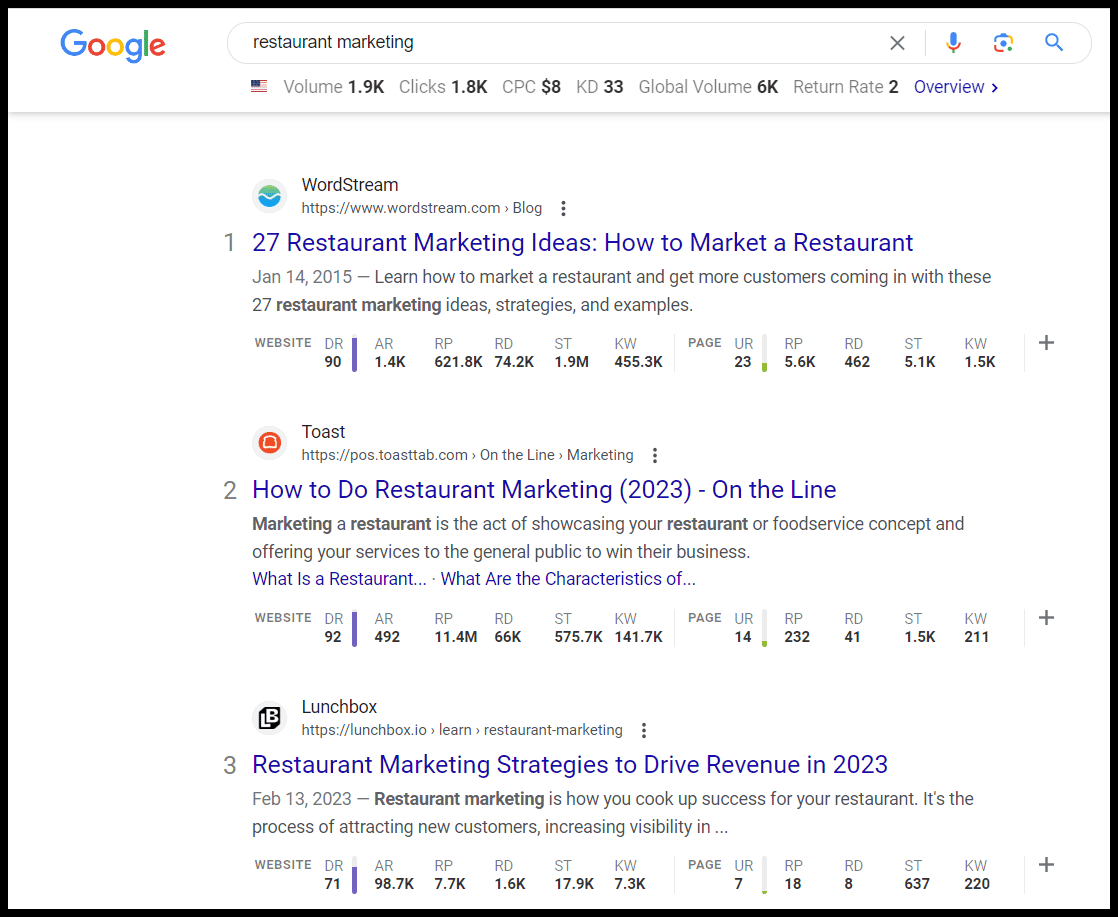
If we had an ultimate guide to restaurant marketing that had lost traffic for that term, we could look to the SERP to see the types of posts that are ranking there currently (the screenshot below is looking at the search results with the Ahrefs Google Chrome plugin enabled):

Address searcher intent

These are authoritative sites, and there's also a mix of content types (a list of ideas, how to do restaurant marketing and a list of strategies).

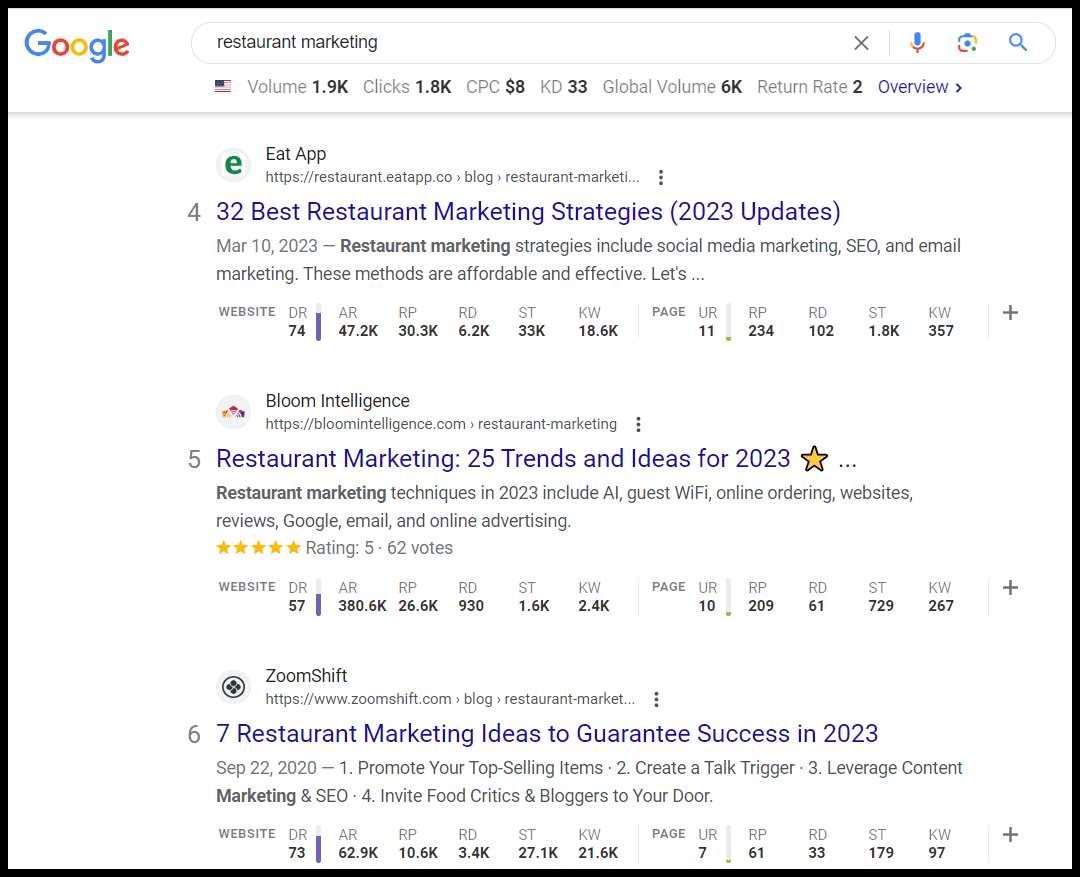
As you continue to scroll down, you also see additional list style formats here:

 Address searcher intent

So looking at reworking this post to be more in line with what’s currently ranking or creating a net-new asset that targets this term with a similar approach is something to consider here.

2. Get to answers more quickly

Along the same lines, if your article “What’s a Successful Restaurant Turnover Rate?” has three paragraphs about what a turnover rate is, the history of turnover rates, etc., before answering the core question you want to pull this up to address the core topic quickly and get the searcher to the information they want.

Along those lines, you can often reformat content to get featured snippets (even using ChatGPT for this purpose).

An obvious best practice for updating old content is updating broken links and refreshing any dated post information.

4. Add relevant subsections and multimedia

Looking for related topics, answering people also ask questions and related questions you can mine from tools like Ahrefs or Also Asked, and topics covered in other pages that are ranking that yours doesn’t have covered are all good ways to update content.

You can also look at the queries losing traffic and consider building new subsections to address these queries.

These updates are also a great opportunity to introduce:

  • More relevant images (like charts/graphs, useful visualizations that will enhance your post and improve engagement metrics).
  • Embedding relevant video (whether its video you’ve created, or embedding a relevant video created by someone else)
  • Embedding relevant social media embeds (even for B2B content there’s often content on platforms like LinkedIn or Twitter that will be relevant and will make your content fresher and more dynamic)

5. Add FAQs

Adding an FAQ section can be a great way to address questions you want to target, and leveraging FAQ schema can significantly impact click-through rates. 

This provides you with some additional SERP real estate (particularly if one of the areas that has changed is how prominent your listing is in relation to other listings).

Often a post or page that's lost traction over time has a number of unaddressed opportunities for internal links.

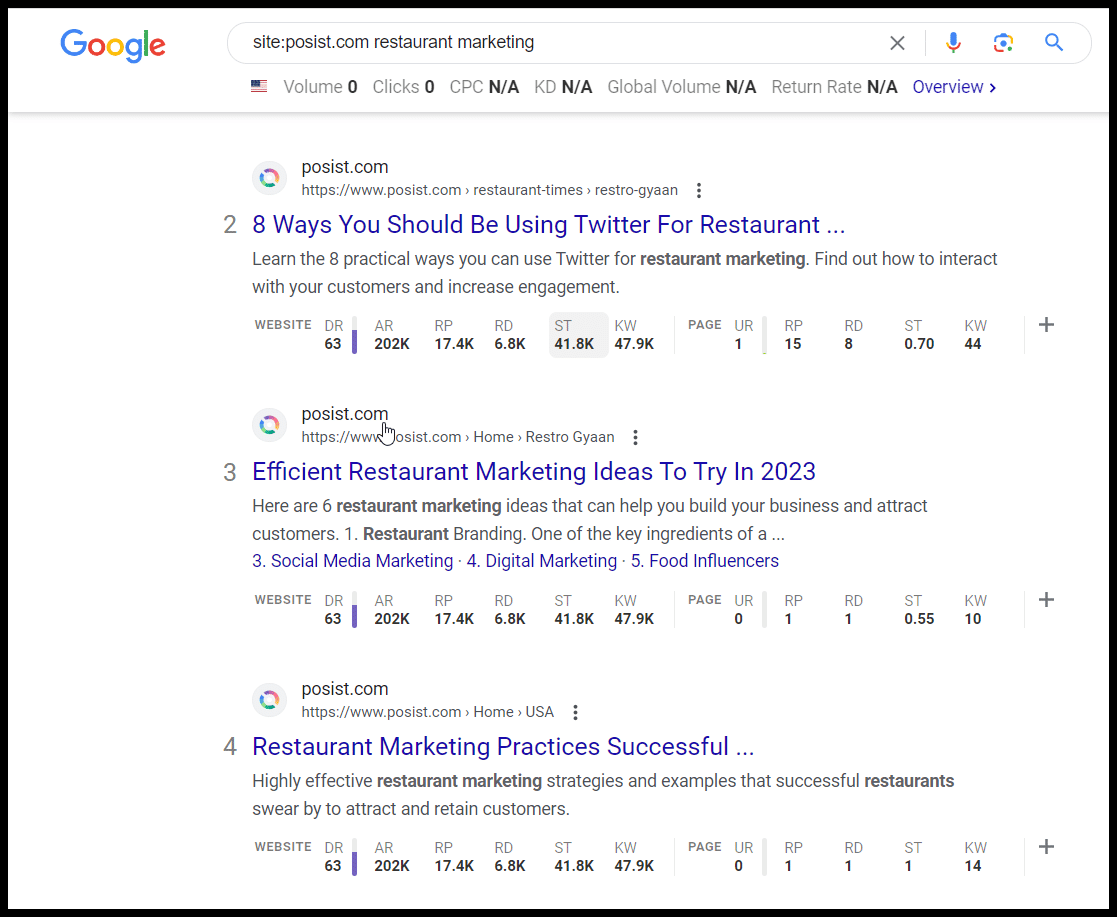
If you don’t have a more thorough process for inventorying internal links, doing a site search for your domain and the target term can be a good quick-and-dirty way to find internal linking targets to add links from for your page:

Add internal links
Note: This is just a random example of a site that has a restaurant marketing guide ranking on the second page. I don’t know if they have or haven’t lost traffic for this phrase or to the guide.

Addressing time stamps

Addressing the time stamps on your pages can be a powerful tactic, particularly in technical niches or just B2B niches where information can become dated quickly. (For instance, where you’re dealing with turnover in terms of models for different equipment, standards for different regulations, etc.)

Particularly, we've found transitioning from publish dates to last updated time-stamps on blog posts and being conscious of what date-based information you expose on the page can have a major impact on organic traffic.

Updating title tags

Loking at the SERP for the types of title tags that are ranking, thinking about the query intent, and finding a way to address query intent while standing out in your title tag can also be a difference maker here. 

This can be particularly powerful on older posts if you notice that you have been using a specific title tag formula and the click-through rate across a content type has waned or stagnated.

You can even leverage ChatGPT for help re-writing title tags.

Address topical authority

Google recently posted about an existing system for assigning topic authority.

One of the ways to combat decay for specific posts is to build out supporting content around a page that’s lost traffic, developing a more comprehensive topic cluster with more related and supporting content.

Taking an entity-based approach to thinking about how you’ve covered a topic, how it’s linked to and links to related topics, you can use the about and mention tags to highlight entities in your content via schema (more on that in this article).

Similarly, you may consider removing lower quality or irrelevant content (though proceed with caution and be sure not to delete content that’s helping you).

Technical audit and content audit

Keep in mind that all of this assumes you don’t have overarching issues like manual penalties and toxic links, crippling technical issues, or glaring content issues on your site. 

If you see site-wide 50%+ dips, you’ll want to look more at a comprehensive technical audit or content audit rather than what’s been outlined above.

The post Get your B2B site unstuck: Top SEO tips for stagnant sites appeared first on Search Engine Land.


from Search Engine Land https://ift.tt/QhLWF7d
via IFTTT